
Express Service Center

Experiencing Long Call Center Wait Times? Try Our Express Service Center!
We are sorry that you have been on hold for so long! The good news is that for many common questions you can skip the line! Our Express Service Center is here to get you the answers you need.
Important: To apply for benefits or check your benefits or child support status, you’ll need a MarylandBenefits.gov account. If you already have an account, just sign in to get started.
 Need a MarylandBenefits.gov Account? Let’s Get You Set Up!
If you already have a MarylandBenefits.gov account, sign in to get started. If not, we’ll guide you through it:
- Go to: MarylandBenefits.gov
- Click: “Create Account”
- On the next page, click: “Create Account” again
- Choose: Whether you’re applying for yourself or someone else, then click “Continue”
- Enter: Your email address and create a strong password, then click “Continue”
- Fill out: Your personal information on the following pages, then click “Create Account”
- Check your email: Look for an Activation Link from MarylandBenefits.gov, then click it to activate your account
- Sign in: After signing in, you’ll receive a Passcode in your email – enter and submit it
- You’re all set! You’re now in the MarylandBenefits.gov Consumer Portal, where you can apply for food, cash, medical, and energy assistance, child support, or check your benefits status.
 How to Apply for SNAP (Food Assistance)
- Visit: MarylandBenefits.gov and click “Sign In”
- Click: “Login to MarylandBenefits.gov”
- Select: “Services,” then choose “Food Assistance”
- Click: “Apply”
How to Check Your Benefits Status(For example, when will my benefits be added to my card?)
- Visit: MarylandBenefits.gov and click “Sign In”
- Click: “Login to MarylandBenefits.gov”
- Select: “View Your Program Details”
- Choose: The Assistance Program you want to check
- View: Your status on the MarylandBenefits.gov Consumer Dashboard
What Should I Do If I Miss My Redetermination Date?You can still submit your Redetermination or Benefit Review Form by following these steps:
- Visit: MarylandBenefits.gov and click “Sign In”
- Click: “Login to MarylandBenefits.gov”
- Select: “View Your Program Details”
- Choose: The Assistance Program you’re inquiring about (cash, food, etc.)
- Click: “My Redetermination” on the Consumer Portal Dashboard if you’re completing your 12-month recertification.
Click: “My Benefits Review Forms” if you’re completing your 6-month recertification.
(Important: If this is your first time on MarylandBenefits.gov as a DHS customer, you’ll need to link your account using your Head of Household (HOH) PIN. If you don’t know your PIN, contact the DHS Call Center and request your Head of Household (HOH) PIN.) - Complete: The entire online My Redetermination or My Benefits Review Form entering all required information
- Upload: Any necessary documents, such as income verification, shelter, medical, and child care expenses
Important: If you don’t submit your Redetermination application, your case will close at the end of your certification period.
 How to Reset Your Password
You can still submit your Redetermination or Benefit Review Form by following these steps:
- Visit: MarylandBenefits.gov and click “Sign In”
- Click: “Login to MarylandBenefits.gov” or “Login to Child Support”
- Select: “I’ve forgotten my password”
- Enter: Your User Name and click “Send the Passcode”
- Check your email: Get the Passcode and enter it in the Passcode field
- Click: “Submit” and follow the prompts to create a new password
Important: If you don’t submit your Redetermination application, your case will close at the end of your certification period.
 How to Make a Child Support Payment
- Visit: MarylandBenefits.gov and click “Sign In”
- Click: “Login to MarylandBenefits.gov”
- Go to: “Services”
- Select: “Child Support”
- Scroll: Down to the bottom black bar and click “Paying Support Electronically”
- Choose: “Online” to pay by credit card or electronic check
- Click: The “Maryland State Disbursement Unit” button
- Noncustodial Parents: Follow the simple online prompts
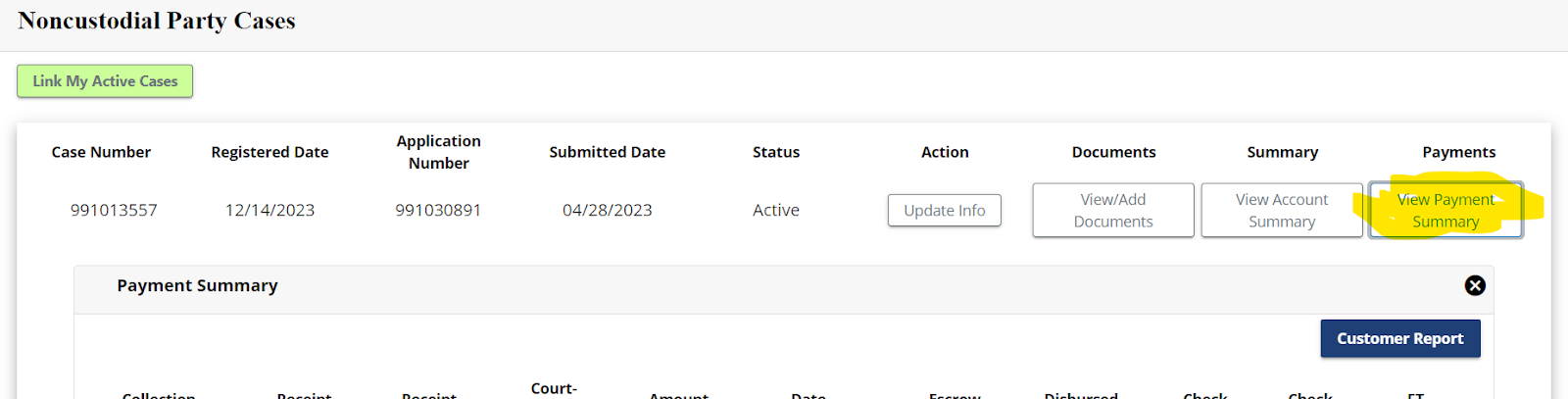
How to View Your Child Support Payment Activity- Visit: MarylandBenefits.gov and click “Sign In”
- Click: “Login to MarylandBenefits.gov”
- Go to: “Services”
- Select: “Child Support”
- On the dashboard, click: “My Cases” and scroll down.
- Click: “View Payment Summary” to view your child support payment details.
 How to Check Your Child Support Application Status
- Visit: MarylandBenefits.gov and click “Sign In”
- Click: “Login to MarylandBenefits.gov”
- Go to: “Services”
- Select: “Child Support”
- On the dashboard, click: “My Applications” to check the status of your child support application, It can be found under the column labeled “Status.”
How to Update Your Personal InformationFor Food, Cash, Energy, and Medicaid Assistance Customers:
- Visit: MarylandBenefits.gov and click “Sign In”
- Click: “Login to MarylandBenefits.gov”
- Click: “Manage Your MarylandBenefits.gov Account”
- Select: “Update Account Details”
- Update: Your information and click “Save & Close”
For Child Support Customers:
- Visit: MarylandBenefits.gov and click “Sign In”
- Click: “Login to MarylandBenefits.gov”
- Click: “Account Management”
- Select: “Update Account Details”
- Update: Your information and click “Save & Close”